Jobs management
Where to Find It
Click on the Jobs icon  to open the Jobs Management panel.
In the Jobs Management Panel, you can:
- View the list of active and completed jobs.
- Filter jobs by type, project, status, or date.
- Monitor the progress of running jobs.
- Access detailed logs for troubleshooting.
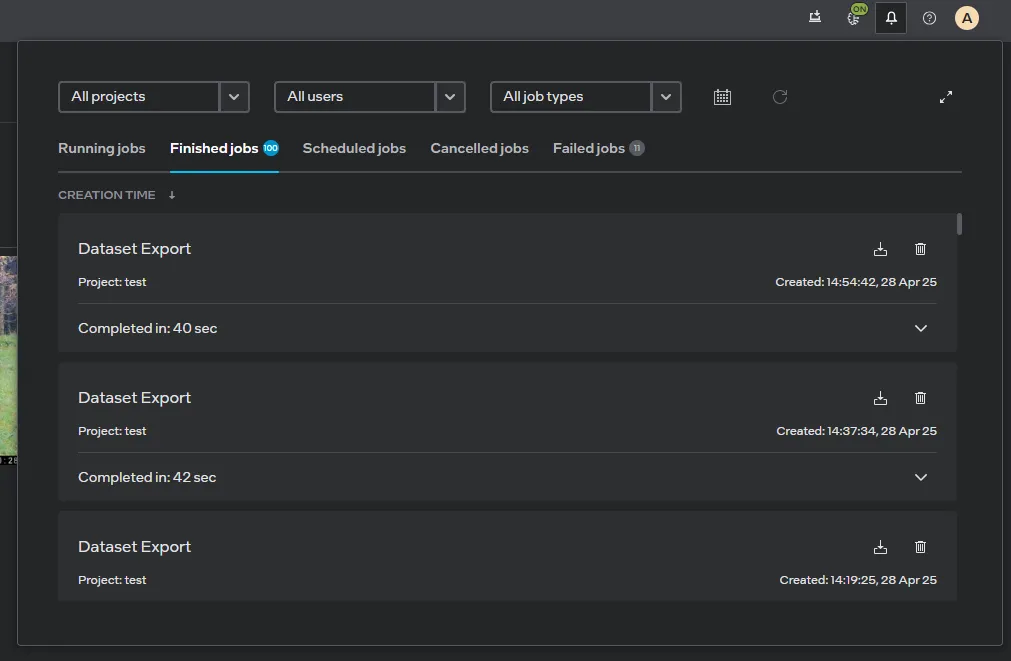 The Jobs Management Panel provides an overview of active and completed jobs, along with filtering options.
What is it?
In Geti™, jobs represent background tasks or processes that are executed within the platform. These tasks are typically triggered by user actions, such as training a model, importing a dataset, or exporting project data. The Jobs Management Panel allows you to monitor and manage these tasks efficiently.
- Jobs provide real-time updates on the progress of tasks, helping you stay informed about their status.
- If a job fails, detailed logs are available to help you troubleshoot and resolve issues. For comprehensive troubleshooting steps, see Troubleshooting Failed Jobs.
- The Jobs Management Panel allows you to filter jobs, making it easier to find specific tasks.
By using the Jobs Management Panel, you can ensure that all processes in your Geti™ environment are running smoothly and efficiently.
Common Types of Jobs
- Model Training: Training AI models on your datasets.
- Dataset Import/Export: Uploading or downloading datasets.
- Model Testing: Running predictions on new data to evaluate the performance of a trained model.
- Model Optimizing: Improving the performance of a trained model.
- Project Import/Export: Exporting project configurations and data.
Jobs Filtering
The Jobs Filtering feature in Geti™ allows you to efficiently manage and locate specific jobs within the Jobs Management Panel. This is particularly useful when dealing with a large number of jobs.
Filtering Options:
You can filter jobs by several parameters:
- Project: Show only jobs from a specific project selected from the list.
- User: Filter by the author of the job. This parameter can also be selected from the list.
- Type: Choose a specific type of job, such as: Train, Test, Optimizer, Import, Export
- Status: Select a specific tab to show jobs with a particular status, such as: Running, Completed, Failed
- Date: Select a range of dates to show only jobs that were created within that range. You can do this by clicking the calendar icon and selecting a range from the calendar or input fields.
Resetting filters
If you want to clear all applied filters and return to the default view, you can easily reset the filters. To do this, click the Reset icon  located in the filtering panel.
This action will remove all selected filters, such as project, user, type, status, or date. Using the reset option ensures you can quickly start a new search or view all jobs without any filtering applied.
If you want to reset only the date range filter, you can do so directly in the panel by clicking the trash bin icon next to the date range inputs.
Troubleshooting
If you encounter issues while using the Jobs Management Panel, try the following:
Quick Troubleshooting Steps
-
Failed Jobs: There is a dedicated tab for failed jobs. If something went wrong, you can find your failed jobs there. To see what happened, click the expand arrow
 to view detailed error information.
 -
Job ID for Technical Details: If you need the job ID for technical support or further investigation, you can copy it by clicking the copy icon
 . The ID will be saved to your clipboard.
Detailed Troubleshooting
For comprehensive troubleshooting of failed jobs, including how to access and download detailed logs through Grafana or Kubernetes, see our dedicated guide: